


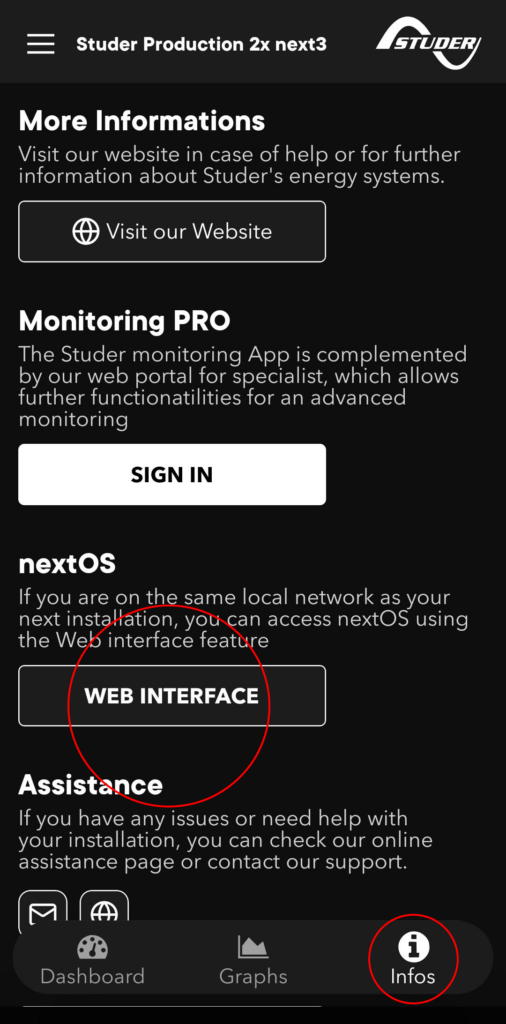
You will need to use the screen on your next3 and the Studer monitoring app, follow the steps shown in the images below. Please note that the web interface function is working only on the same internet network (local network) that your next3. The access to the web interface with the app is possible when your installation is already connected to our monitoring services, If it isn’t connected, you can continue to follow this FAQ, which describes an alternative connection process that doesn’t require the app.
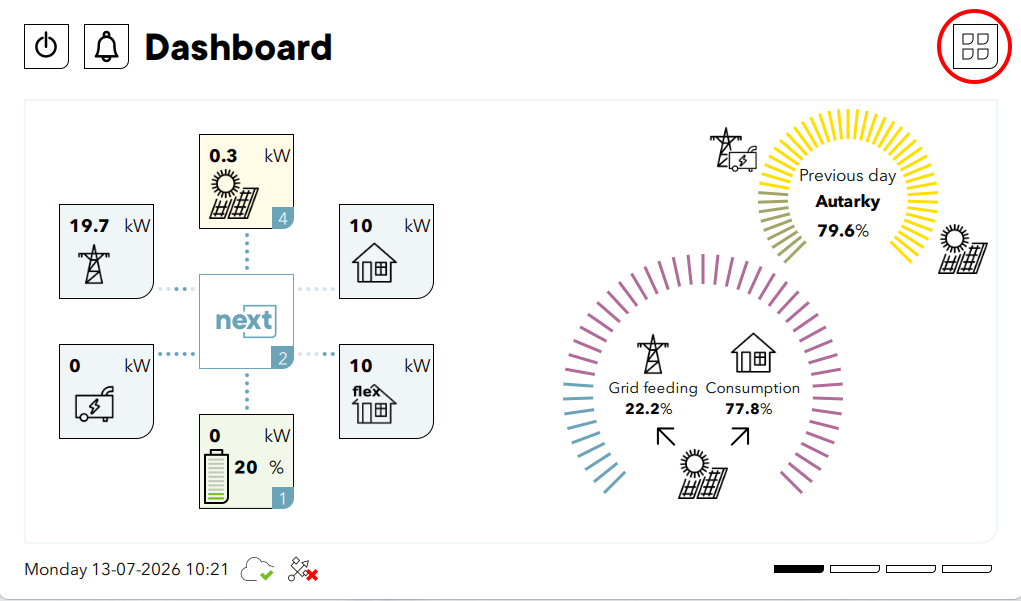
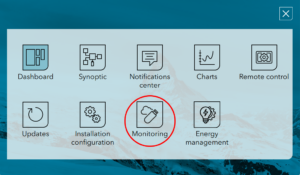
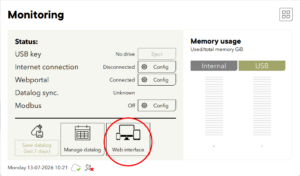
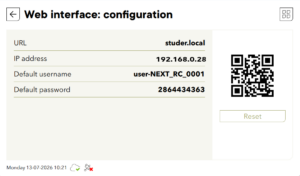
If you do not have the monitoring app, go down the page to the section “Connecting without using the Studer monitoring app”
With the app: now that you have found the section containing the login details for the web interface, open your Studer monitoring app, go to the “Info” section, click on the “Web interface” button, a page will open with fields where you can enter your login details manually or automatically by using the QR code button to scan the QR code displayed on the interface of the next3. Your login details will be entered automatically the next time you log in.
Connecting without using the Studer monitoring app
Open your web browser (Google, Firefox, Safari, etc.) and enter studer.local or the IP address displayed on the screen of your next3 into the search bar. A page will open with fields where you can enter your login details manually or automatically by using the QR code button to scan the QR code displayed on the interface of the next3. Your login details will be entered automatically the next time you log in.